

Book Tracker - ISBN Scanner
Import or Export Guide
Last updated: July 6, 2026
This guide helps you move your library data into Book Tracker (import) and save a copy out of the app (export), using files on your iPhone or iPad. Use import when you have a spreadsheet from another app or a backup. Use export when you want a file you can open elsewhere, share, or archive.
Example CSV file (download)
This is an example file only. It is not your personal library. It shows the correct header row and sample book rows so you can see how a valid import looks before you build your own file.
The button above downloads the example CSV file from this site. Save it where you can find it, then import it from Files on your iPhone or iPad if you want a practice import. The sample includes built-in statuses and custom statuses (for example Loaned, Sold, and Wishlist). Do not mistake this sample for a backup of your real books.
Before you start
- Try the example first (optional): You can download the example only CSV here: download example CSV. It is for practice and layout reference, not your real data.
- File format: Use UTF-8 CSV, comma-separated. Exports from the app are built this way; imports should match.
- Header row: Row 1 must list column names (see below). Remove blank rows between the header row and your first data row.
- File size / rows: Large files may be slow. Start with a small test file if you are unsure.
- Device: These steps assume iOS (iPhone or iPad). Grant file access when the system asks (for example when picking from Files).
- Import and export share the same column rules: See Column headers and data format below.
Export your library
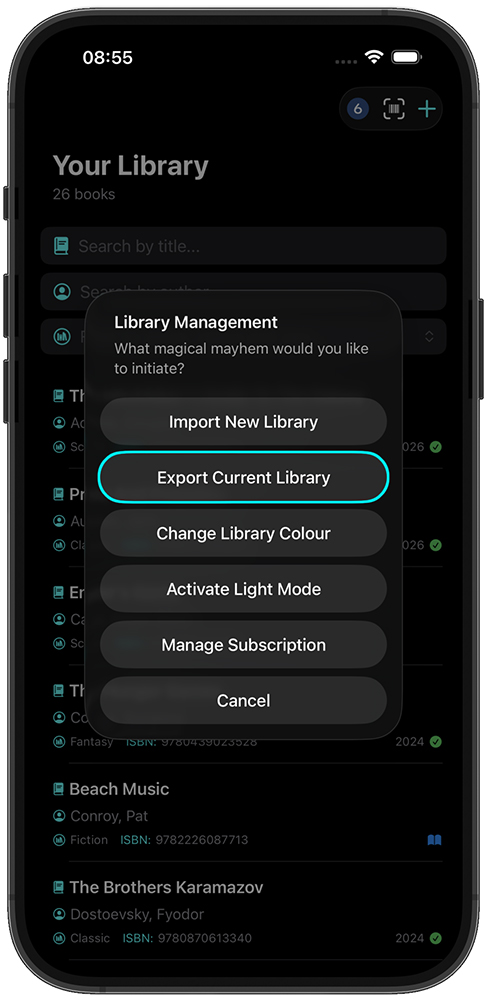
Export creates a CSV you can save to iCloud Drive, On My iPhone, or another location you choose.
- Open Book Tracker and go to the screen that lists export options (for example Settings → Export or Library → Export — see the note above).
- Tap Export (or the button your build uses, such as Export library).
- If the app asks what to include, choose full library, selected books, or a date range. Pick what you need.
- When the share sheet appears, pick Save to Files (or another destination). Give the file a name you will recognise.
What the file contains: The app writes one header line, then one row per book. Column order is always BookID,Author,Title,Genre,ISBN,Status,Notes (see below). Built-in statuses export as their label (for example Read (2025), TBR). Custom statuses export as their label verbatim (for example Loaned, Wishlist). ISBN values are wrapped in quotes on export so spreadsheets keep them as text.
Import a file
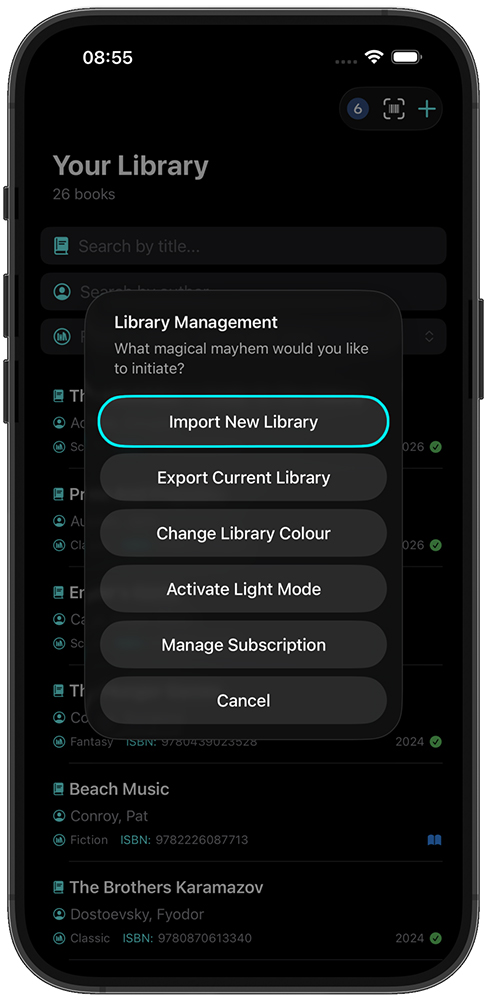
- Open the import flow (for example Settings → Import or Library → Import).
- Tap Choose file / Import and pick your UTF-8 CSV from Files. For a first test, download the example-only CSV here, save it, then choose that file in Files.
- If the app shows a preview or validation step, read any warnings. Fix the file and try again if needed.
- Confirm the import when you are satisfied. Wait until the app finishes; do not force-quit during the process.
Import vs column order: You do not need to reorder columns to match the export table, as long as the header names in row 1 are correct (the importer matches by header, not position). Whitespace around header names is trimmed.
If the app offers a dry run or preview import, use it first on a copy of your file.
Column headers and data format
CSV is a plain-text spreadsheet: one row per book, values separated by commas. Use UTF-8 encoding and commas as the delimiter (same as export).
Canonical column order (export / recommended import)
Exports use this exact column order. The header line is these names joined with commas; each data row uses the same column order.
BookID,Author,Title,Genre,ISBN,Status,Notes
Empty template (copy this single line for a new file):
BookID,Author,Title,Genre,ISBN,Status,Notes
Alternatively, download the same example-only CSV (with headers and sample rows): download example CSV.
Import: header names and Book ID
- BookID is required on import. The importer also accepts Book ID (space between words) for the same column.
- Other columns are matched by name: Author, Title, Genre, ISBN, Status, Notes.
- Author and Title are both required for a row to import; formatting is normalised on import (for example title capitalisation).
- A blank BookID on a row may be assigned a new ID by the importer. Export always writes the stored ID.
- Genre maps to the app's location/label field (free text).
- ISBN is free text; quote ISBNs in CSV when needed so tools do not drop leading zeros.
- Notes is free text. If a note contains commas, quotes, or newlines, use CSV quoting/escaping (RFC 4180 style).
- Extra columns: Additional columns beyond this schema are ignored on import workflows that follow it.
Status values (import and export)
Import and export use the same Status column. Built-in names are matched case-insensitively on import.
Built-in statuses
- Read — optionally with a year in parentheses, for example
Read (2024)orRead (2025). - Currently Reading
- TBR
- DNF
- Unread
Custom statuses
- Any other non-empty value in the Status column is treated as a custom status (words are title-cased on import, for example
on loan→On Loan). - On import, up to 3 distinct custom labels are added to your library-wide custom status list.
- Books using a 4th distinct custom label import without a status; the rest of the row is kept.
- Custom labels cannot match a built-in name (for example
Read,TBR,Unread). - On export, custom statuses appear in the Status column as their label (for example
Loaned,Wishlist,Tottenham). - Wishlist is a custom status, not an alias for Unread. Export → edit → re-import keeps
WishlistasWishlist.
Clearing status
- Blank or empty Status → no status on import.
- Values that incorrectly match a reserved built-in name, or invalid empty custom names, are cleared.
Custom statuses in the app
In Book Tracker you can define up to 3 custom statuses library-wide (for example “On Loan”, “Book Club”, or “Wishlist”). A book has either a built-in status or a custom status, not both.
Where to manage them: Open the Status menu from:
- Long-press a book in your library
- Add Book
- Edit Book
Status menu actions:
- Add status… — adds a new label to your library list and applies it to the current book.
- Edit Status — renames that custom status for every book using it.
- Delete Status — removes the status from your list and clears it from all books that had it.
- Clear status — removes the status from one book only.
Custom statuses appear as coloured hearts in the app (purple for the 1st, mint for the 2nd, yellow for the 3rd). Colours stay fixed even if you delete a status later.
When filtering by status, custom entries appear at the bottom of the Status submenu, with matching heart colours.
Field reference
| Column | Role |
|---|---|
BookID / Book ID | Required on import (flexible header). Blank may get a new ID; export always emits stored ID. |
Author | Required with Title; normalised on import. |
Title | Required with Author; normalised on import. |
Genre | Free text; maps to the app's location/label field. |
ISBN | Free text; export wraps ISBN in quotes for spreadsheets. |
Status | Built-in labels or a custom label (see Status values and Custom statuses in the app above). |
Notes | Free text; quote if commas, quotes, or newlines appear (RFC 4180-style escaping). |
Example: header plus sample rows
Use UTF-8 CSV, comma-separated. This matches export order and shows built-in and custom statuses. You can also download the ready-made example file (sample data only): download example CSV.
BookID,Author,Title,Genre,ISBN,Status,Notes
1,"Morrison, Toni",Beloved,Fiction,"9781400033416",Read (2024),Won Pulitzer; classroom copy
8,"Austen, Jane",Pride And Prejudice,Classic,"9780141439518",Loaned,"Sharp, witty, and surprisingly fun - Mr. Darcy earned the hype."
18,"Adams, Douglas",The Hitchhiker's Guide To The Galaxy,Sci-Fi,"9780345418913",Tottenham,Expecting absurd humor and chaos - in the best way.
Example: minimal row (empty optional fields)
BookID,Author,Title,Genre,ISBN,Status,Notes
2,"Rowling, J. K.",Harry Potter And The Philosophers Stone,Young Adult,"",Currently Reading,
Re-importing an export
Re-importing a file you exported from the app is supported when headers stay valid. Extra columns are ignored. Custom status labels in the Status column are preserved on re-import. If the file contains more than 3 distinct custom labels, only three are registered library-wide; books using a 4th (or further) distinct label import without a status. If you edit a file, keep header names exact and follow status and quoting rules above.
Common errors and fixes
- Wrong or missing headers — Compare row 1 to the example CSV (sample file):
download example CSV,
or to the header line
BookID,Author,Title,Genre,ISBN,Status,Notesbelow. - Row not importing — Each data row needs both Author and Title filled.
- Status not recognised or missing after import — Built-in values must match
Read,Read (YYYY),Currently Reading,TBR,DNF, orUnread(case-insensitive). Any other non-empty value is treated as a custom status. - Custom status missing after import — Only the first 3 distinct custom labels in the file are kept library-wide. Books using a 4th distinct label import without a status (other columns are kept).
- Custom status not in filter list — Same 3-label limit applies. Re-import with fewer custom labels, or add statuses manually in the app via the Status menu.
- Wishlist became Unread — Older versions of this guide were incorrect.
Wishlistis now preserved as a custom status on import and export. - Extra spaces in header names — Leading/trailing spaces on headers are trimmed; fix odd spacing inside names.
- ISBN or Notes broken in Excel — Keep ISBN quoted as in export; quote Notes if they contain commas, quotes, or line breaks.
- Duplicate Book IDs — Resolve duplicate IDs across rows if the importer rejects or merges unexpectedly.
- Wrong file type — Use real UTF-8 CSV, not a renamed Excel file.
Privacy and safety
Exported files may contain titles, notes, or other details you consider personal. Store them in a secure location (password-protected drive, device passcode). Avoid emailing sensitive exports without encryption if that could expose your data.
For how Book Tracker – ISBN Library handles data in the app and online services, see Privacy Policy.
Need more help?
Learn more about the app, features, and pricing on the Book Tracker – ISBN Library landing page, or download it free on the App Store.
Use the contact form at the bottom of this page, or email info@6ixdesign.com.au.